
Copy a template. Personalize it in Word. Save a tribute you can share.
These free obituary templates for Word give you a starting point when finding the right words feels difficult. Choose a layout below, copy the text into Microsoft Word, and replace the bracketed details with your loved one’s information.
The three wording templates are free to copy, with no download required. They are text layouts you can turn into your own Word document, rather than downloadable DOCX files. Designed funeral program products are available separately further down the page.
Choose a free template | Edit in Microsoft Word | Browse program designs
Choose a free obituary template to use in Word
- Simple text obituary: a short announcement for a newspaper submission, email, or online notice.
- One-page memorial: a tribute with an optional photograph, life story, and service details.
- Funeral program obituary: wording to place inside a printed service booklet.
Copy only the template you need. Replace every bracketed field and delete any section that does not apply. You can use “died” or “passed away,” depending on the family’s preference.
1. Simple text obituary template
Use a plain, single-column Word document for this version. If you are submitting it to a newspaper or funeral home, follow their requested format and length.
[Full name], [age], of [town or city], died on [date of death].
[First name] spent much of [their] life [brief description of family life, work, community involvement, or interests]. [They] will be remembered for [a personal quality and a specific example of it].
[First name] is survived by [names and relationships]. [Optional: They were preceded in death by names and relationships.]
A [service type] will be held on [date] at [time] at [venue and location]. [Optional donation or condolence information.]
2. One-page obituary template with an optional photo
Place the name at the top of the page, followed by the life dates and an optional portrait. Keep the tribute below the photo so the text stays easy to edit.
In Loving Memory of
[Full name]
[Birth date] – [Date of death][Optional: Insert a photograph here and remove this instruction.]
[Full name], [age], of [town], passed away on [date of death].
Born in [birthplace], [first name] [describe an important chapter of their life]. [They] loved [interests or activities] and found particular joy in [a meaningful detail].
Family and friends will remember [a personal story, familiar saying, or act of kindness].
[First name] is survived by [loved ones] and was preceded in death by [loved ones, if appropriate].
Service information
[Service type]
[Date and time]
[Venue and location]
[Public attendance details or a note that the service is private][Optional closing message or verified donation information.]
3. Obituary wording for a funeral program
This version is for an inside page or panel of a service booklet. It is the obituary section, not a complete booklet layout. Put the order of service and other readings in their own sections.
Remembering [Full name]
[First name] was born in [birthplace] on [birth date, if you wish to include it] and died on [date of death] at the age of [age].
Throughout [their] life, [first name] [describe meaningful relationships, work, service, or achievements]. [They] enjoyed [interests] and will be remembered for [a personal quality].
One memory the family holds close is [a short, specific story].
[First name] is survived by [loved ones]. [Optional: Include loved ones who died before them.]
[A brief closing sentence in the family’s own words.]
For relationship-specific wording and more help telling a life story, visit our obituary templates and writing guide.
How to make an obituary document in Microsoft Word
- Open a blank document. Copy your chosen template from this page and paste it into Word. If website styling comes with it, use the paste option to keep text only.
- Replace the placeholders. Add confirmed names, dates, relationships, and service details. Remove unused paragraphs and instructions.
- Choose the paper size. Use Letter or A4 to match your paper or printer’s requirements. In desktop Word, paper size and margins are generally under Layout; menu names vary by version.
- Make the text readable. For a plain tribute, try 11–12 point body text and a larger name heading. Use a familiar font and leave space between paragraphs. Adjust the layout to suit the reader and printed proof.
- Add a photograph if wanted. Insert the picture, resize it from a corner, and start with the “In Line with Text” layout option to keep it within the document’s text flow.
- Save an editable copy. Save the document as a DOCX file so you can revise it later. Keep a separate PDF copy when you are ready to share or print.
Suggested layout for a one-page tribute
- Top: the person’s name and optional life dates.
- Below the heading: one clear portrait, if wanted.
- Main section: two to four short paragraphs about the person’s life and family.
- Bottom: confirmed service information and an optional donation message.
If the tribute does not fit, shorten repeated details or use a second page. Avoid shrinking the text until it becomes difficult to read.
Save your obituary as a PDF and check the print layout
Keep the Word document for editing. For a print copy, use the PDF option available through your version of Word’s Save As, Export, or download menu. Open the PDF and check it before sending it to someone else.
- Confirm the spelling of every name and the accuracy of dates, times, and locations.
- Check that no bracketed placeholders remain.
- Look for text cut off at the bottom of a page or a heading separated from its paragraph.
- Check that photographs are clear and not stretched.
- Print one proof on the intended paper before printing the full quantity.
Creating a folded funeral program in Word
A folded program needs a booklet layout and the correct page order. If you are starting from a blank document in desktop Word, review Microsoft’s guide to creating a booklet in Word.
If you purchase a program template, follow its supplied setup instructions instead of changing the document to a new booklet layout. Confirm paper size, two-sided printing, and folding with a test print.
Common Word formatting problems
- A photo moves unexpectedly: try “In Line with Text” for a simple document. Designed templates may use positioned images or text boxes, so follow their editing instructions.
- The tribute runs onto another page: shorten repeated wording or reduce excess paragraph spacing before making the font smaller.
- Borders are missing in print: keep them within your printer’s printable area and check the document margins.
- The layout changes on another computer: provide a checked PDF for printing and retain the DOCX file for editing.
Designed funeral program templates
If you would like a decorative program with room for photographs, obituary wording, and service details, browse these designs. They are separate from the free text templates above.
Before ordering, check the individual product page for the current price, file format, editing software, dimensions, and printing instructions. If you need a Microsoft Word file, confirm that the selected product includes a Word version.

-
 Sale
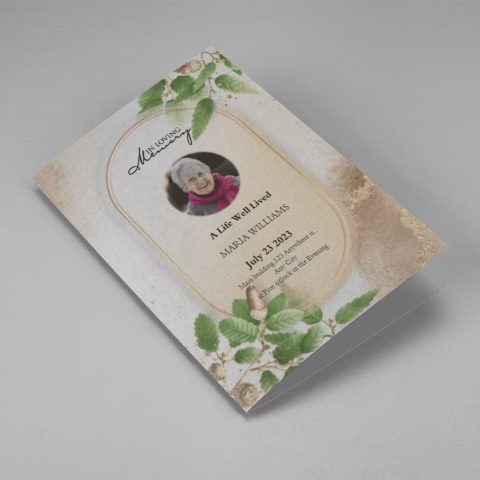
SaleSearching for a Oak Leaf With Gold Oval Frame Half Page Funeral Program that is easy to print and amass and has a cutting-edge look? The Oak Leaf With Gold Oval Frame Half Page Funeral Program is the Perfect decision because it measures 8.5”x 5.5”.
- No Limitation on Content, Edit anything
- Edit anytime – unlimited revisions even after purchased
- Get a printable PDF downloaded to get it printed on your own.
-
 Sale
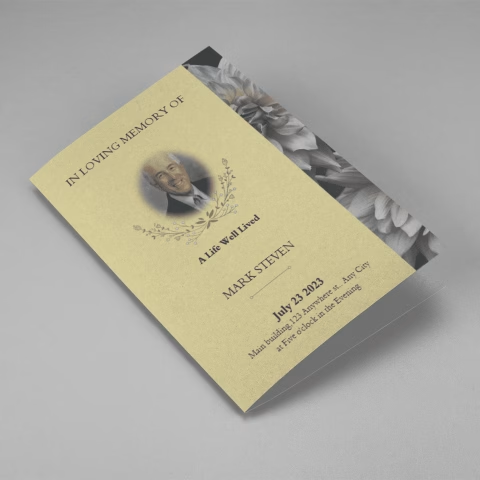
SaleSearching for a Brown and White Classic Funeral Program Half Page Program that is easy to print and amass and has a cutting-edge look? The Brown and White Classic Funeral Program Half Page Program is the Perfect decision because it measures 8.5”x 5.5”.
- No Limitation on Content, Edit anything
- Edit anytime – unlimited revisions even after purchased
- Get a printable PDF downloaded to get it printed on your own.
-
 Sale
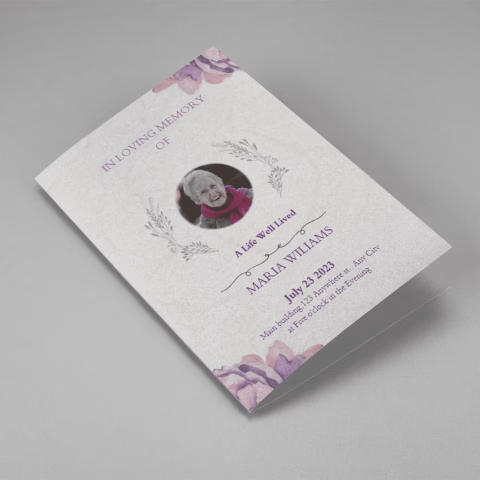
SaleSearching for a Purple Elegant Watercolor Half Page Funeral Program Template that is easy to print and amass and has a cutting-edge look? The Purple Elegant Watercolor Half Page Funeral Program Template is the Perfect decision because it measures 8.5”x 5.5”.
- No Limitation on Content, Edit anything
- Edit anytime – unlimited revisions even after purchased
- Get a printable PDF downloaded to get it printed on your own.
-
 Sale
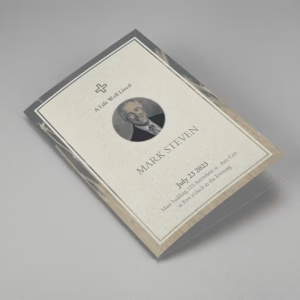
SaleSearching for a Cream and Green Photo Obituary Half Page Program that is easy to print and amass and has a cutting-edge look? The Cream and Green Photo Obituary Half Page Program is the Perfect decision because it measures 8.5”x 5.5”.
- No Limitation on Content, Edit anything
- Edit anytime – unlimited revisions even after purchased
- Get a printable PDF downloaded to get it printed on your own.
-
 Sale
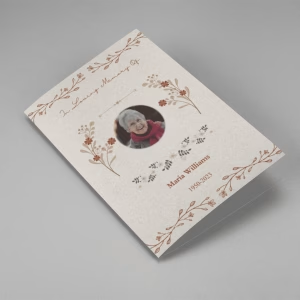
SaleSearching for a Cream Simple Elegant Photo Church Half Page Program that is easy to print and amass and has a cutting-edge look? The Cream Simple Elegant Photo Church Half Page Program is the Perfect decision because it measures 8.5”x 5.5”.
- No Limitation on Content, Edit anything
- Edit anytime – unlimited revisions even after purchased
- Get a printable PDF downloaded to get it printed on your own.
-
 Sale
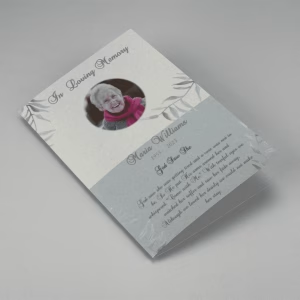
SaleSearching for a Samovar Silver Half Page Funeral Program Template that is easy to print and amass and has a cutting-edge look? The Samovar Silver Half Page Funeral Program Template is the Perfect decision because it measures 8.5”x 5.5”.
- No Limitation on Content, Edit anything
- Edit anytime – unlimited revisions even after purchased
- Get a printable PDF downloaded to get it printed on your own.
Funeral program how-to videos
Explore the video guides below for help creating funeral programs. Choose a tutorial that matches the editor or product you are using.
Questions about free obituary templates for Word
Are the templates on this page free?
Yes. The three text templates are free to copy and personalize. You do not need to buy a funeral program to use them. The designed products in the shop section are priced separately.
Is there a DOCX file to download?
The free templates on this page are copyable text, not downloadable DOCX files. Paste one into Word and save it as your own DOCX document. Check individual shop listings if you want a predesigned Word file.
Do I need Microsoft Word to use the wording?
No. You can paste the text into another document editor, including Google Docs. Microsoft Word access is separate from these free wording templates, and available editing features depend on your version.
Can I add a photo to the obituary?
Yes. Use a photograph the family is comfortable sharing. In a simple Word document, place it below the person’s name and above the tribute. Check its clarity in the final PDF and printed proof.
What is the difference between an obituary and a funeral program?
An obituary announces a death and tells the person’s life story. A funeral program is a service handout that may include the obituary, photographs, readings, and the order of service.
Do I need to include the cause of death?
No. Include it only if the family wants to share it. You can give the person’s name and date of death without explaining the circumstances.
Can I send the Word document to a newspaper?
Check the newspaper’s submission instructions first. Some publishers accept documents, while others require text entered into an online form. Confirm the deadline, word limit, image requirements, and charges.
What should I check before sharing the obituary?
Ask another family member to review names, relationships, dates, and service details. Remove unused placeholders and private information you do not want published. If arrangements are not confirmed, leave them out or say that details will follow.